Frequency and send time
Daily, weekly with a day of the week, or monthly with a day from 1 to 31. Set the hour and minute, and the schedule is evaluated in your account's timezone.
Feature
Automated client reporting means you set a report's schedule, recipients, and sender once — then Oviond renders it fresh and emails it on every cycle, with no manual rebuild.
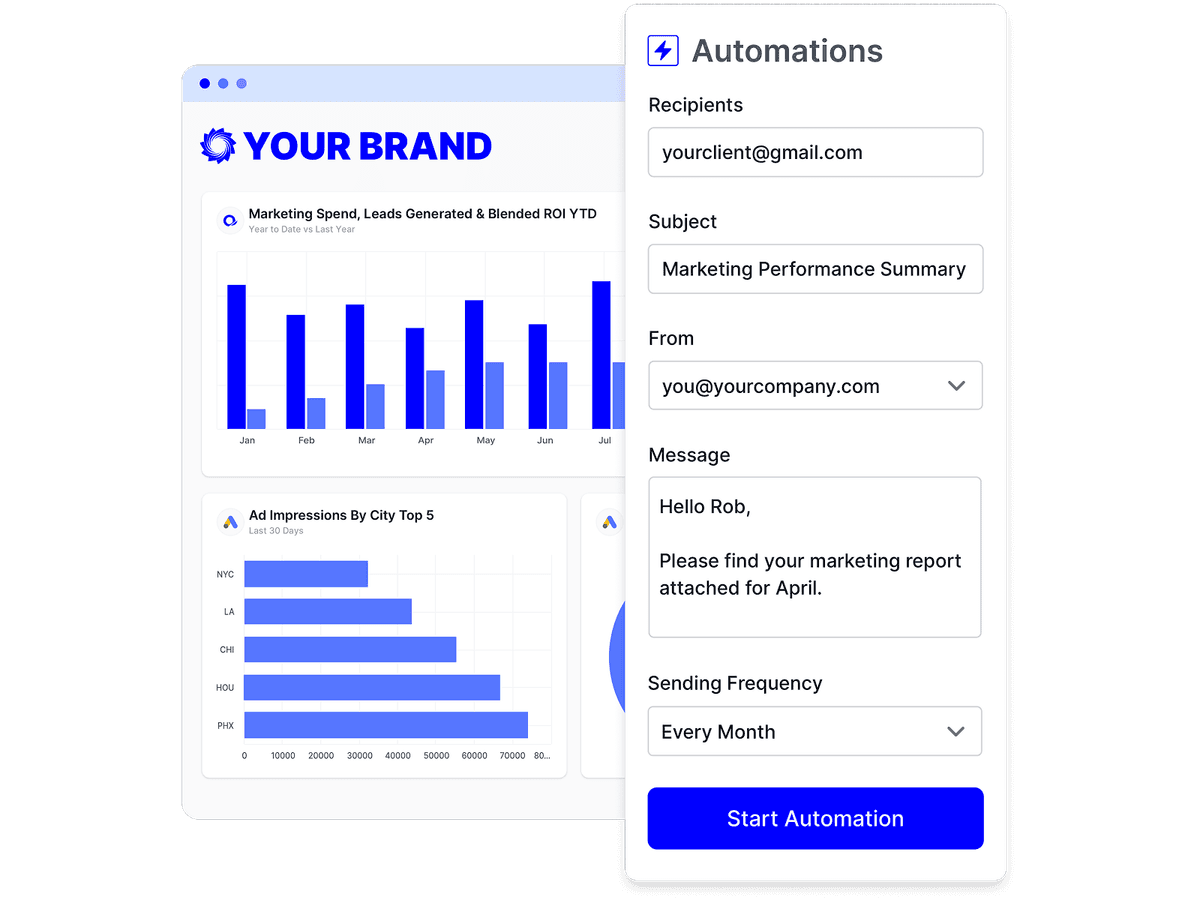
Why automated client reporting
Recurring reporting is mostly repetition. An automation does the repeating.
Choose daily, weekly, or monthly delivery, pick the day and the send time, and the next run is scheduled for you.
The reporting period is stored as a preset, so a monthly report set to last month always covers the most recent complete month.
Recipients, sender, and email template all live on the automation, so no one has to chase the send.
How it works
An automation ties one report to a schedule, a recipient list, a sender address, and an email template. On each run, Oviond renders the report for the configured date range and emails it out.
Oviond checks for due automations every minute, so a run starts shortly after its scheduled time rather than exactly on the second.
Daily, weekly with a day of the week, or monthly with a day from 1 to 31. Set the hour and minute, and the schedule is evaluated in your account's timezone.
The period is saved as a preset such as Last Month and resolved fresh on every run, so the report always covers the right window without anyone editing it.
Add one or more recipient addresses and choose the From sender. Senders can sit on your own verified sending domain or on your own SMTP server.
Pick a saved template or compose a custom message inline. Placeholders for client name, report name, and date range fill in from the real report, and a custom message is saved as a reusable template.
A test send delivers the report immediately, to the saved recipients or a different address. It does not advance the schedule, and it is logged as a Test run so you can tell it from a real delivery.
Suspend an automation without losing its configuration, and review every past run — scheduled or test — as Success, Failed, or Skipped, per report or across the whole account.
Scheduling is table stakes; the price you pay to run it for every client is not — restated from the dated fact tables on our comparison pages.
| Tool | Starting price | Pricing model |
|---|---|---|
| Oviond | From $40/month billed annually ($50 month-to-month) — 10-client minimum, $4/$5 per client | One plan, every feature included; tiered by client count — the flat $5 per client month-to-month, $4 per client on annual billing |
| AgencyAnalytics | $20 per client/month billed annually, or $25 per client/month month-to-month (the "Save 20% annually" toggle on their pricing page) | One "Core" plan, every feature included; flat rate per client. Custom-priced Enterprise from 25 clients |
| Swydo | €62/month billed annually (€69 monthly) — first 10 data sources included | One plan billed per data source (one account on one platform = one source); extra sources €4.50/month each up to 100, then €3.00; users, clients, and reports unlimited |
| DashThis | Individual: $44/month billed annually ($54 monthly) — 3 dashboards, 15 data sources, no full white-label | Four tiers capped by dashboards + data sources (3/15 → 50/200); unlimited users on all tiers |
| Octoboard | "For Agencies" from €25/month for 5 clients (~€5/client), 30% off annual; the separate "for Business" plans from €12/month | "For Agencies": per client, in increments of 5. "For Business": separate, non-transferable products each metered on a different unit (data connections, ad spend, orders, events) |
| Reporting Ninja | Starter: $20/month billed annually ($25 monthly) — 10 reports, 4 users, 10 accounts | Four tiers capped by reports + users + connected accounts (10/4/10 → 150/16/150); all features on all tiers |
| Reportz | $9.90 per dashboard per month (volume slider; e.g. 8 dashboards ≈ $78.72/month) | Per dashboard; unlimited users and unlimited widgets per dashboard |
| Whatagraph | Go: €199/month, 20 source credits; Max: from €699/month, 50+ credits; Prime: custom | Tiers metered by source credits (1 credit = 1 connected data account); users and reports unlimited |
| Raven Tools | Small Biz from $49/month ($39/month billed annually, prepaid) for 2 domains; full white-label starts on Grow at $199/month ($139/month annual) | Flat plan fee tiered by number of domains/campaigns (2 to 320) and users, with SEO usage limits; annual is prepaid upfront |
Competitor facts restate the sourced, dated tables on the linked comparison pages (most recent check September 2, 2026); Oviond facts verified September 1, 2026. Vendors change pricing — the comparison pages carry the sources. See every comparison
Three recurring jobs an automation takes off the team.
Rebuilding the same report every month
One automation that renders it fresh on every run.
A calendar reminder to send the report
A schedule that fires whether or not anyone remembers.
Guessing whether a report actually went out
A run history with the status of every send.
The schedule is the easy part. These three decide what lands in the inbox.
Scheduled email sits alongside live links, embeds, and PDF downloads, so each client can have the format they prefer from the same report.
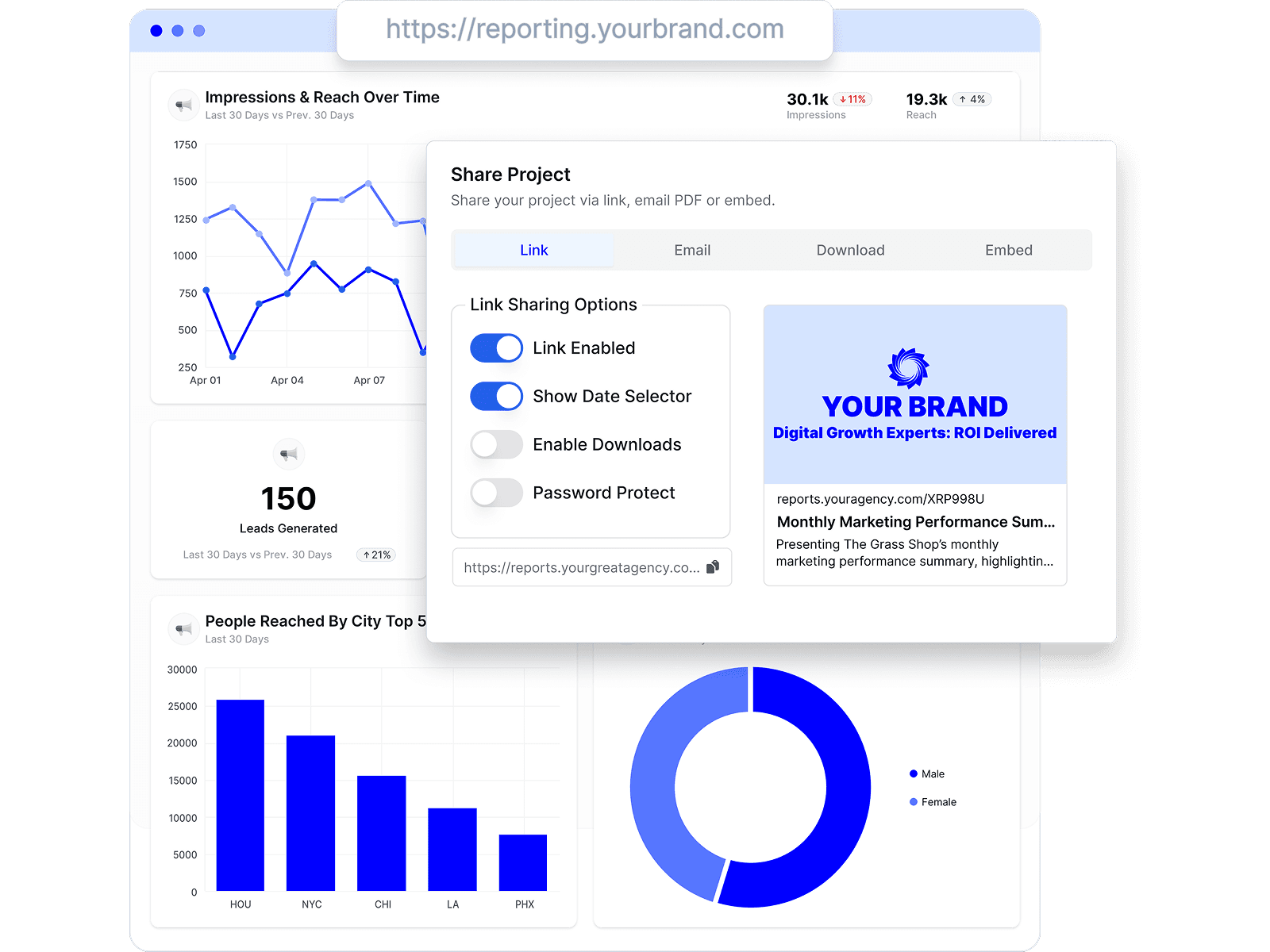
Every automated send carries your theme and can leave from your own verified address, so the automation is invisible to the client.

Because the report is rendered again on each run, the metrics, filters, goals, and calculated KPIs you configured are recalculated for the new period.
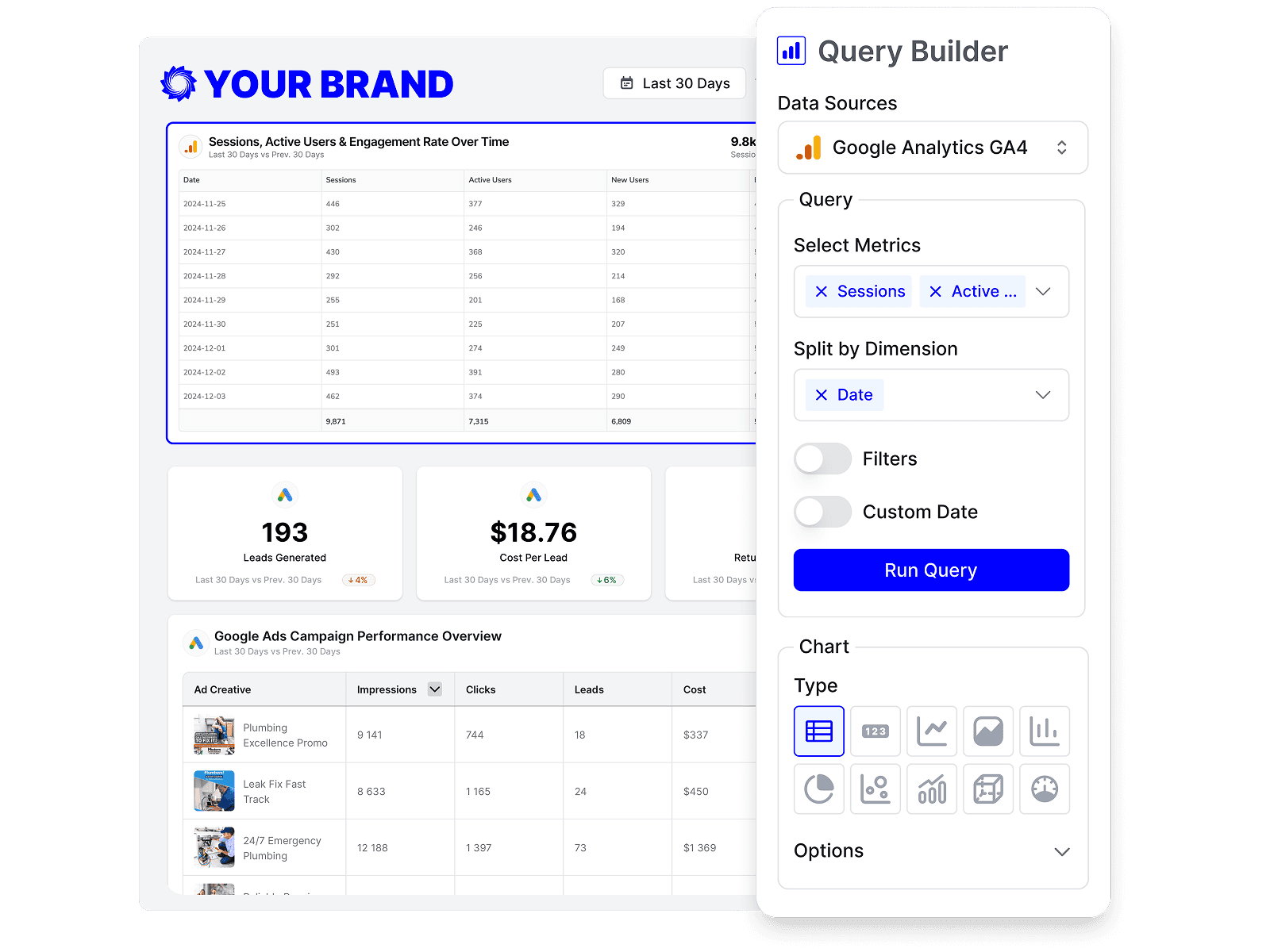
Any of the 70+ marketing data sources Oviond connects can sit inside a scheduled report — paid media, analytics, search, social, email, CRM, and e-commerce.
Build the report from a ready-made template once, attach an automation, and that client's reporting is handled from there.
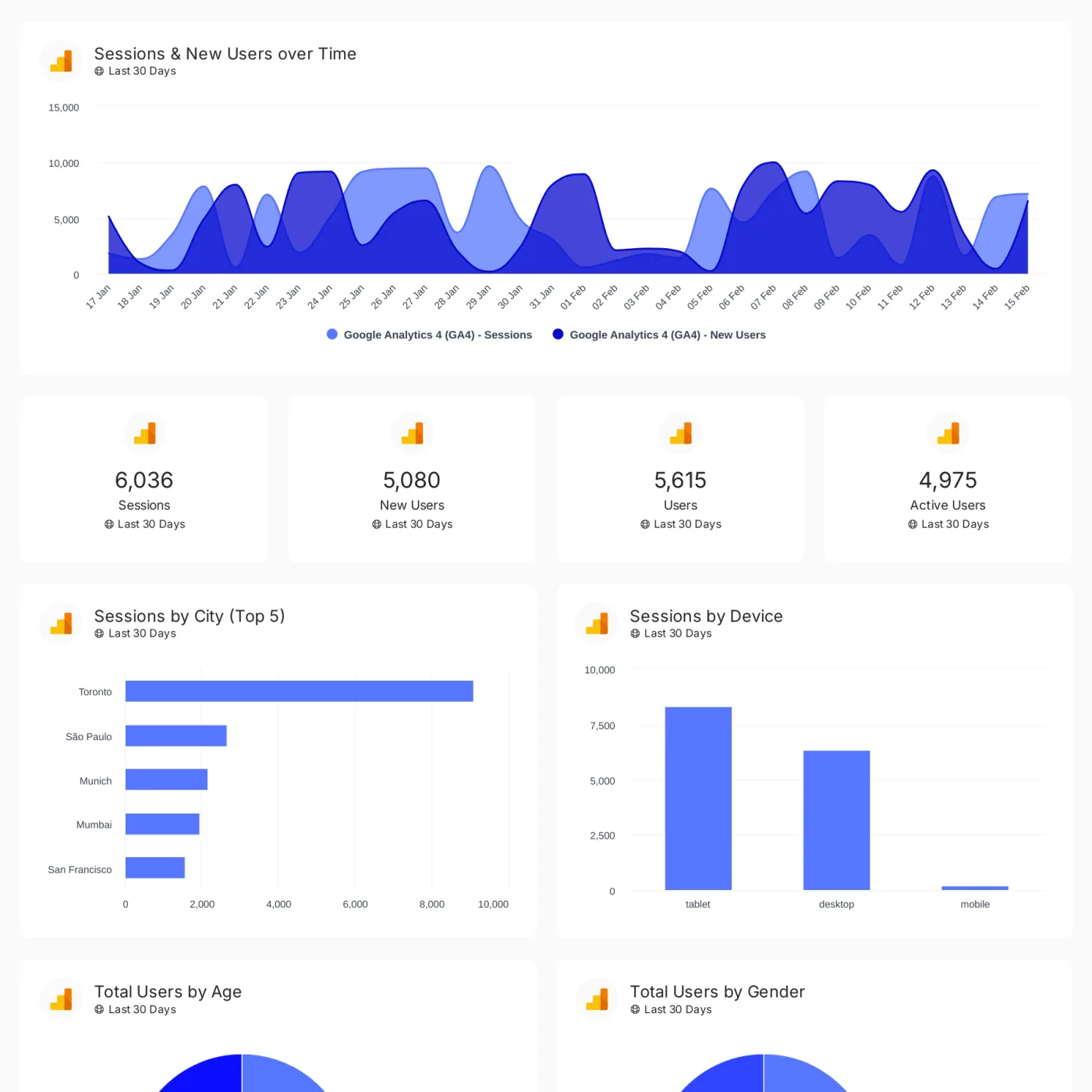
Track conversions, revenue, traffic, and customer engagement across your client's full marketing stack in one branded dashboard.
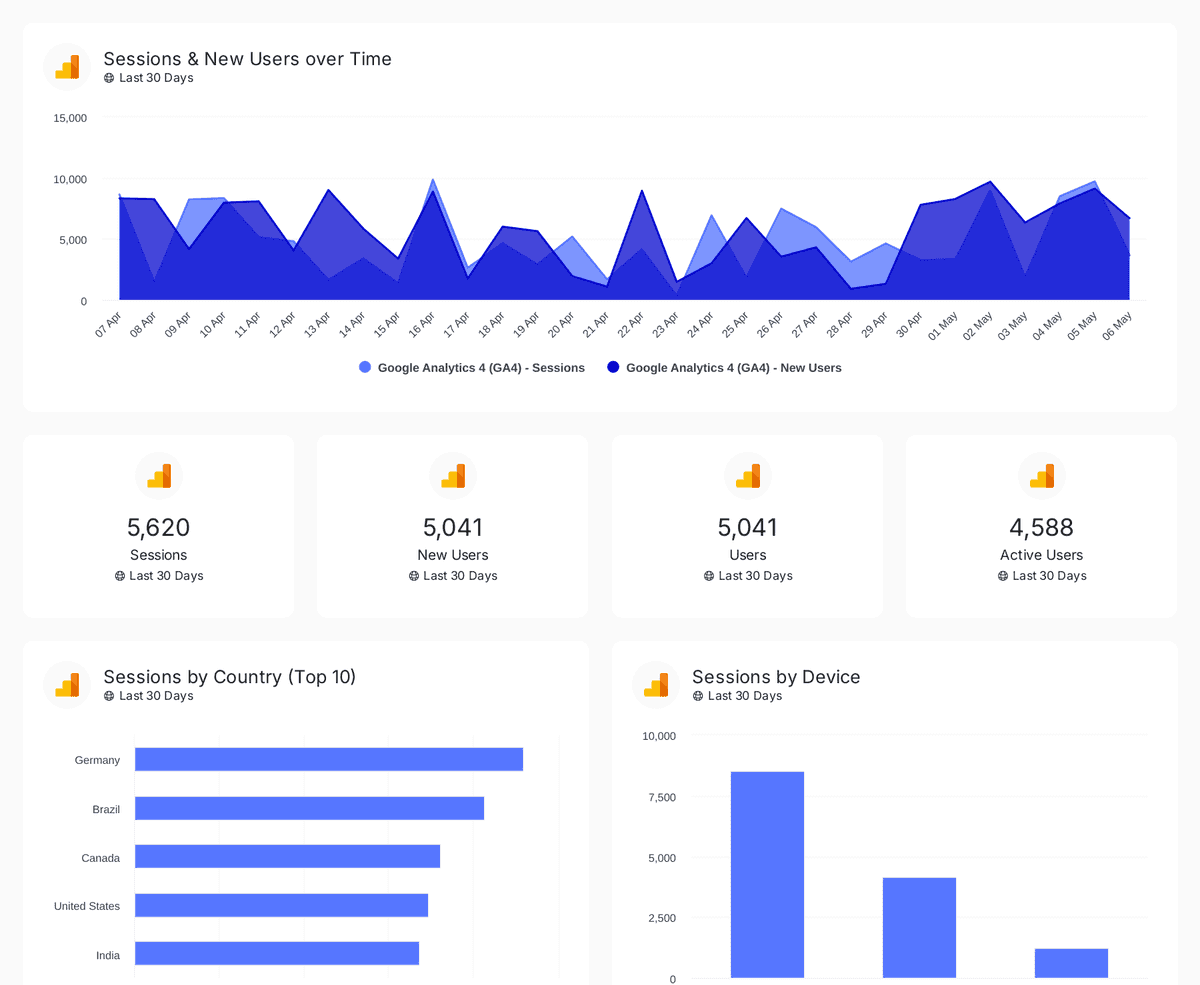
Track sessions, users, and traffic sources with insights by country, device, age, gender, and channel performance analysis
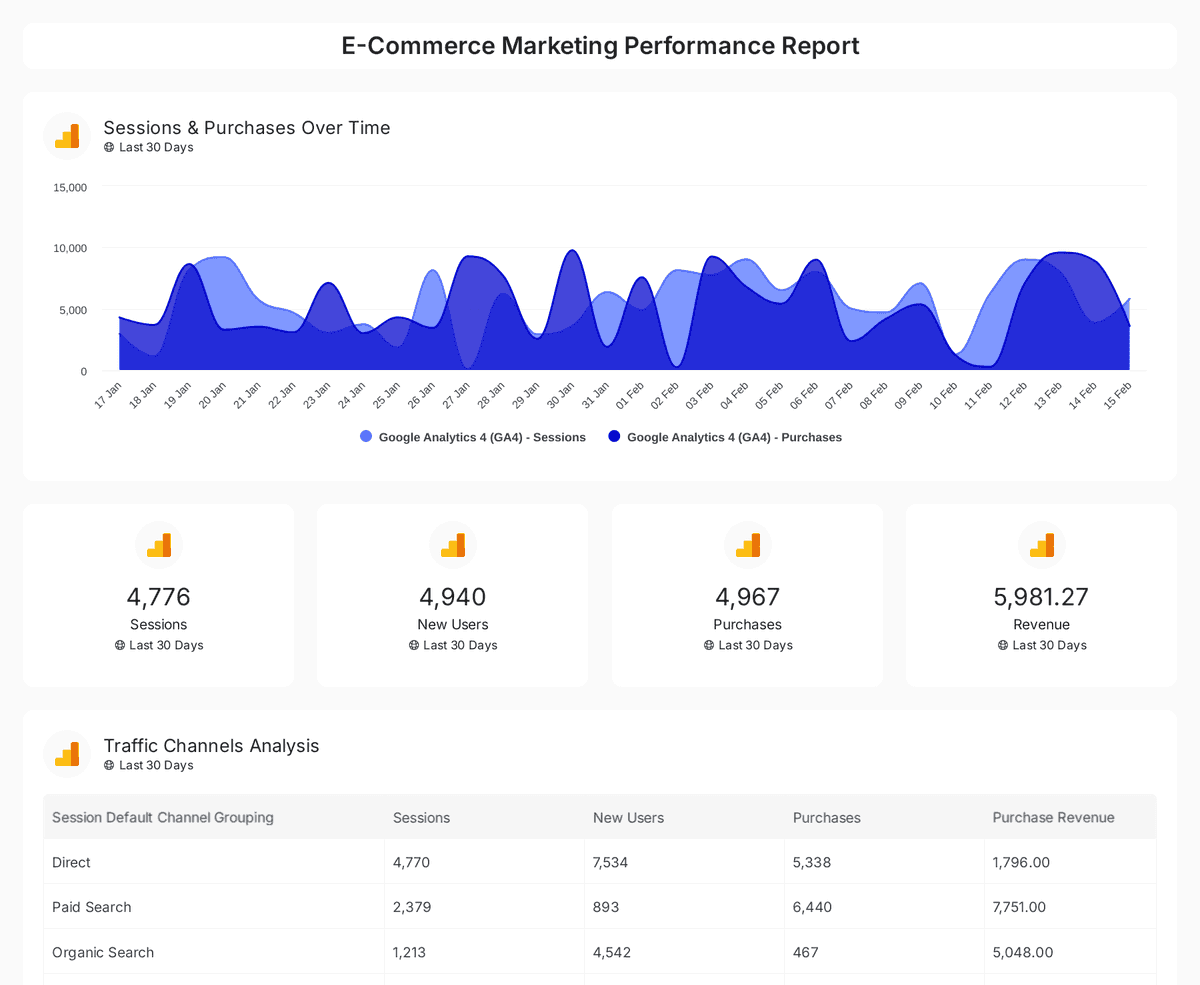
Analyze e-commerce sales, conversions, and traffic insights with interactive, real-time performance metrics.
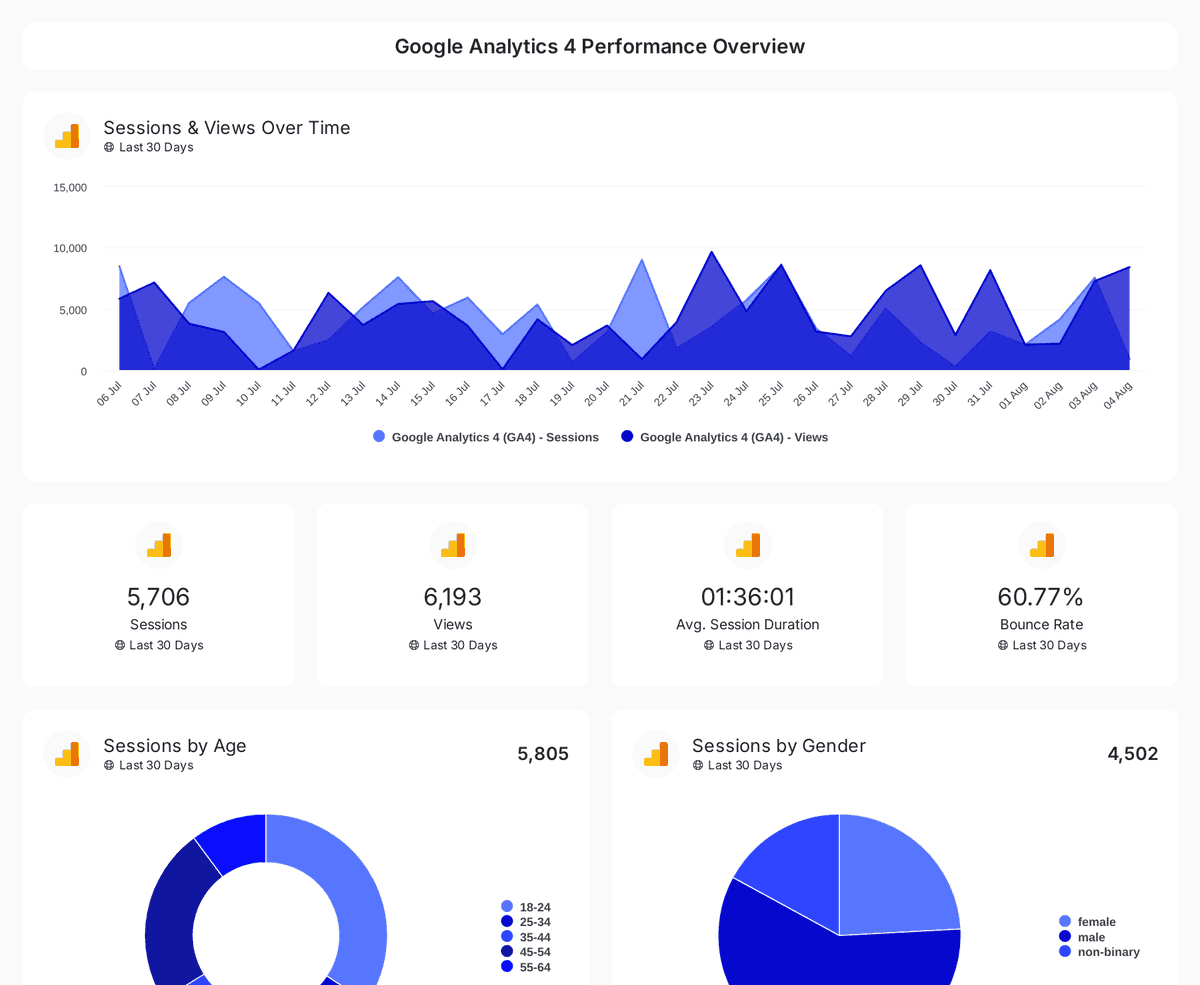
Monitor website traffic, user demographics, and page performance with insights from Google Analytics 4, Search Console, and Page Speed Insights.
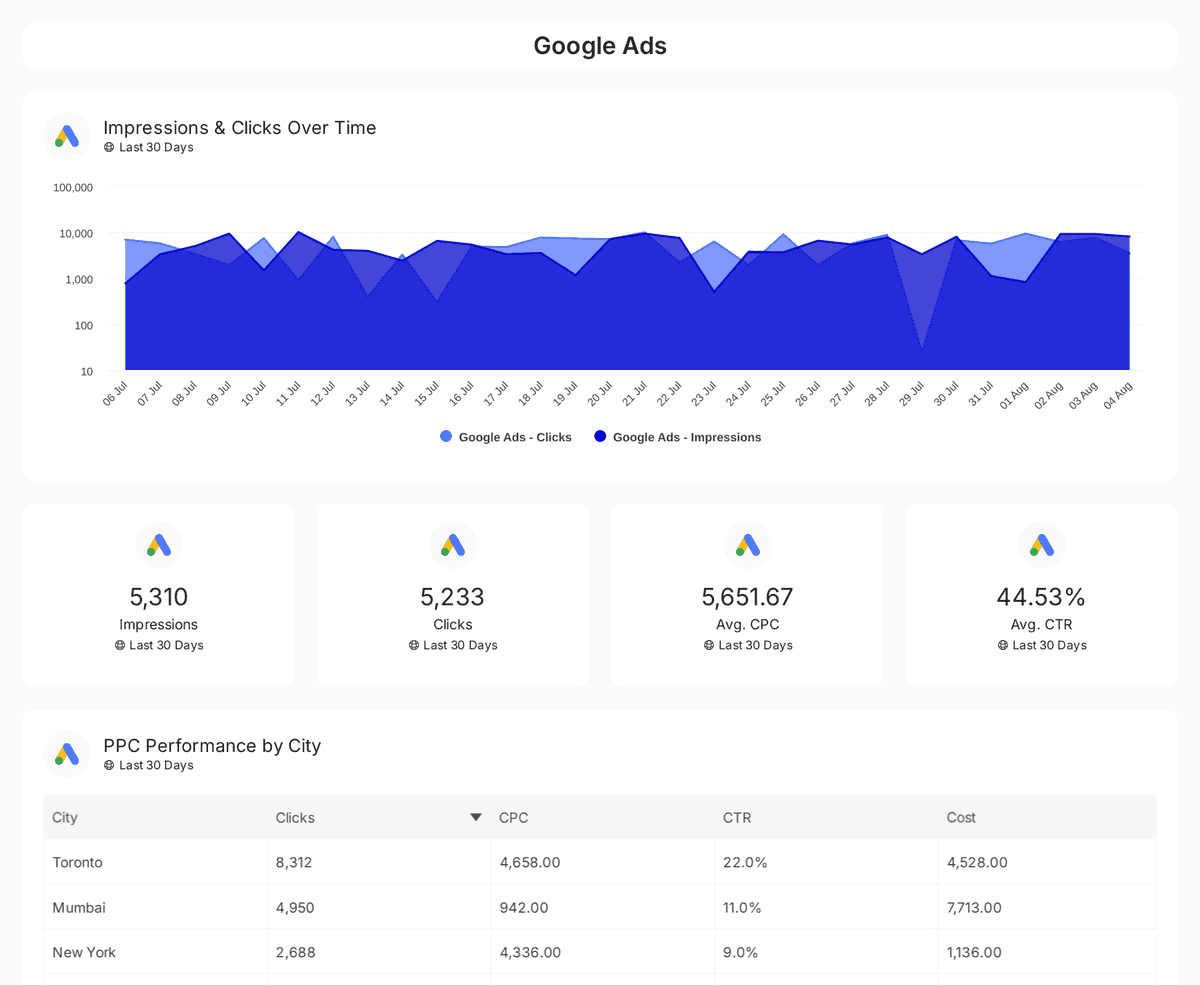
Track and compare reach, clicks, impressions, and CTR across Google, Facebook, Instagram, LinkedIn, and Twitter Ads over time.
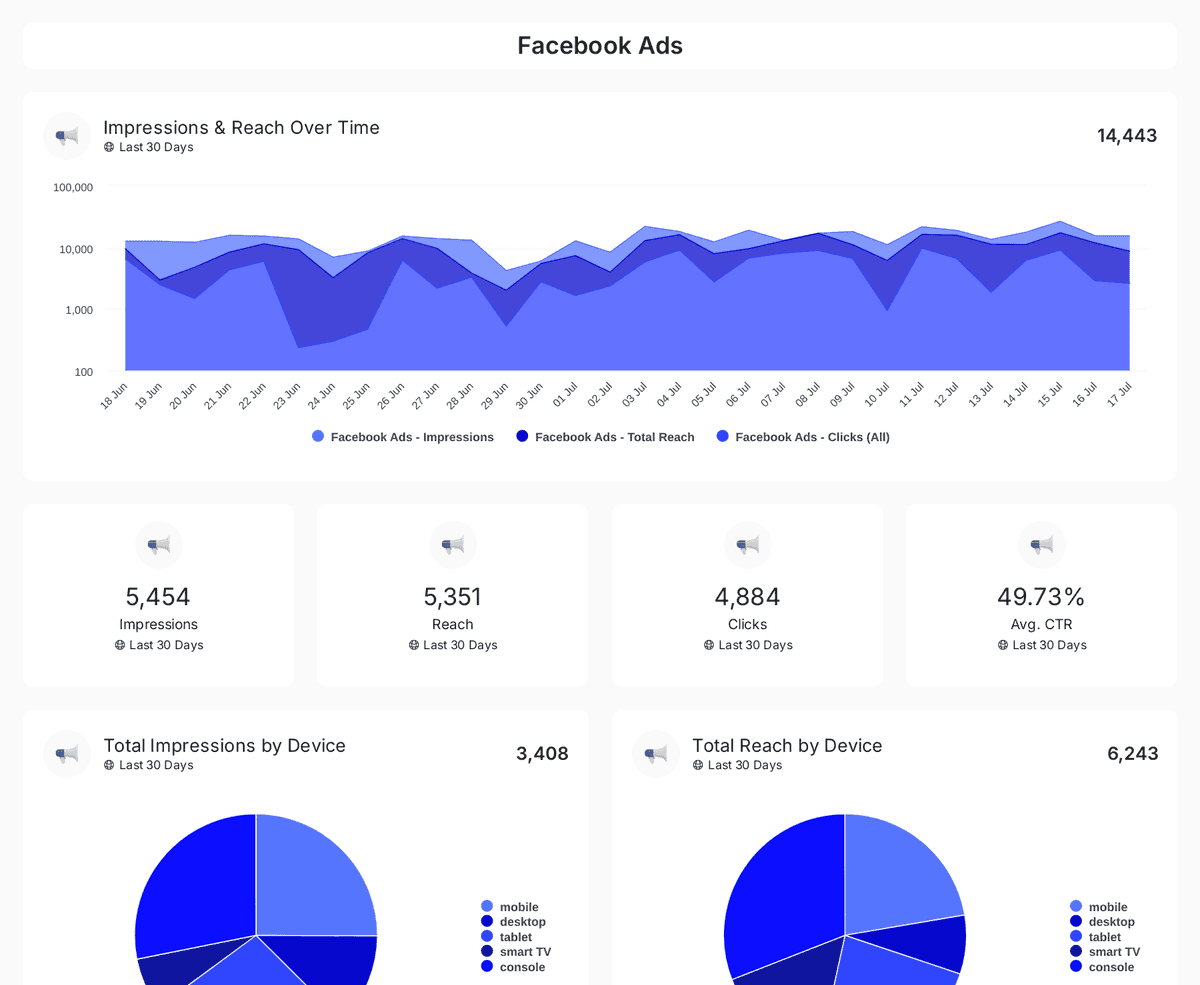
Track impressions, clicks, CTR, and ad spend across Facebook, Instagram, LinkedIn, TikTok, and Twitter Ads with insights on engagement & conversions.
| Fact | Oviond |
|---|---|
| Scheduled delivery | Recurring report email delivery and automations included on every plan |
| Sending identity | Reports sent from your own verified sending domain |
| Reports & dashboards | Unlimited reports and unlimited live dashboards on every plan |
| Starting price | $40/month billed annually ($50 month-to-month) for 10 clients |
| Pricing model | One plan, every feature included; $5 per client month-to-month or $4 per client billed annually, from 10 to 100 clients self-serve |
Oviond facts verified September 1, 2026 by Oviond Product. Pricing in USD. See full pricing
Schedules, senders, test sends, and delivery history — the practical details.
Automated client reporting is recurring report delivery configured once and run on a schedule. In Oviond an automation holds the report, the frequency, the reporting period, the recipients, the sender, and the email template, and re-renders the report on every run.
Daily, weekly, or monthly. Weekly automations take a day of the week, monthly automations take a day from 1 to 31, and both take a send time evaluated in your account's timezone. Those three frequencies are the full set.
Open Automations in the sidebar and click New automation, or use the Automations tab inside a report to start with that report selected. Name it, set the frequency and send time, pick the client, report, and date range, then add recipients, a sender, and an email template.
Whichever preset you chose, resolved fresh on every run. A monthly automation set to Last Month always sends the most recent complete month, so the range moves with the calendar on its own.
Yes. Choose a sender on your own verified sending domain, or one backed by your own SMTP server. If an automation has no usable sender it is flagged on the Automations list and will not deliver until you set one.
Yes, and it is worth doing. A test send renders and emails the report immediately, exactly as a scheduled run would, and you can point it at a different address. It leaves the schedule untouched and is recorded as a Test run in the history.
Every run is logged with its source, time, reporting period, and status — Success, Failed, or Skipped. You can review the runs for one report or a single timeline across the whole account.
Yes. Pausing suspends sending without losing the configuration, and runs that fall due while it is paused are logged as Skipped. Test sends are disabled until you resume it.
Yes. PDFs are generated on demand from a report's Download tab in A4 or Letter, portrait or landscape, and clients can download one themselves from a shared link when you allow it.
Automation handles the delivery. For the rest, see marketing reporting for the deliverable itself, marketing dashboards for the weeks between sends, the drag-and-drop report builder for building what gets sent, and the reporting API and MCP server to create and schedule automations programmatically. Comparing options? See all comparisons.
Set the schedule, the recipients, and the sender once — then reporting day takes care of itself.